- Advanced web based WYSIWYG online HTML editor Client Area | Site Map | Contact Us | English | Chinese
Getting Started
Software Provided Style
Backend Administration
Basic Examples
Pop-up Windows' Call
Multiple Editors
Localization / Multi-language
Image Hot Link
Paragraph Attribute
Powerful control on font style
Advanced Topics
Client API
Getting Uploaded Files
Citing External Style Sheets
Get Remote Files Automatically
Relative/Absolute URLs
Thumbnail Image
Image/Text Watermark
Mixing typeset of Image and text
Unlimited optimized undo and redo
Local file auto upload
Import from Word
Import from Excel
Image/Flash/Media/File Gallery
Actual Application
News Management System
Detailed instructions about Import from Excel

With the import function of Excel table, you can import the appointed worksheet in the ready Excel table to editor at a time. Pictures and charts and other files in Excel table will auto upload to server. Furthermore when importing, it provides options to ask for whether to keep VML format or not for you actual publishing application needs. And it can perform the shift from Excel worksheet to HTML and importing by one press instead of reenter and any complicated operations.

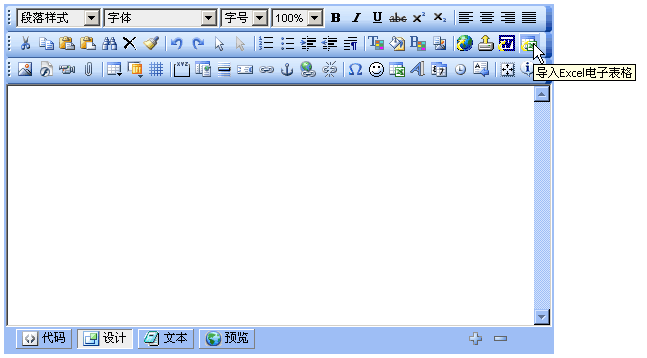
Click to try Import from Excel.

Icon:

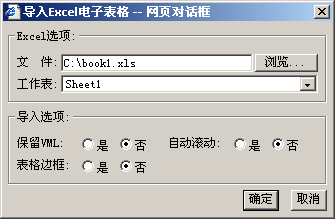
Click the button icon; it will pop up the following dialog box:

Click browse in the above box and then choose the Excel document with an extension of ".xls" and which you need to import. After selecting valid Excel document, in "worksheet" pull-down menu it will list the worksheet existing in the Excel document and then select worksheet to import. Next select whether to keep VML or not and click "ok" to finish. Then the Excel worksheet will be imported to editor.

Keep VML:

This option is mainly designed for chart from Word. If you select "yes", the chart from Word document will be displayed in VML format instead of picture file. Otherwise it will produce image and be uploaded to server.

Effect comparison of the two options:

optionseffect
YesChart will not produce image file but instead it display in VML. Files in server would be less while HTML code became more in editor content area. Browsers (IE4.0 and later) supporting VML are applicable.
NoChart will produce image file and without VML code. Files in server become more while HTML code in editor content area would be less. All browsers are applicable.

Auto roll:

If you select "yes", it will add an auto rolling layer to the most border of table. It can keep page from being zooming on or invisible when the imported table is too wide and auto add roller to fully display table.

Border:

Excel table defaults no frame lines. If you don't add frame line when making tables in Excel, there will be no frame lines when it is imported. You can employ this function to auto add frame to tables which don't have.

Note:

The using of this function requires the support of "eWebEditor client software". If it is the first time for you to use it, it will popup the install interface of "eWebEditor client software" component. Click "yes" in the install interface and finish the install of component and it will popup interface as above.


Copyright © 2003-2007 eWebEditor.com, All Rights Reserved .